Simple but not obvious
Three things might confuse a new user encountering Push to Computer - Cool Maze for the first time:
- pushto.computer displays a QR code. Should I use a standard QR code scanner app to read it?
- Is the QR code used to receive data, or to send data from my phone?
- I’ve just installed the app. Now, in order to use it, should I first open the app?
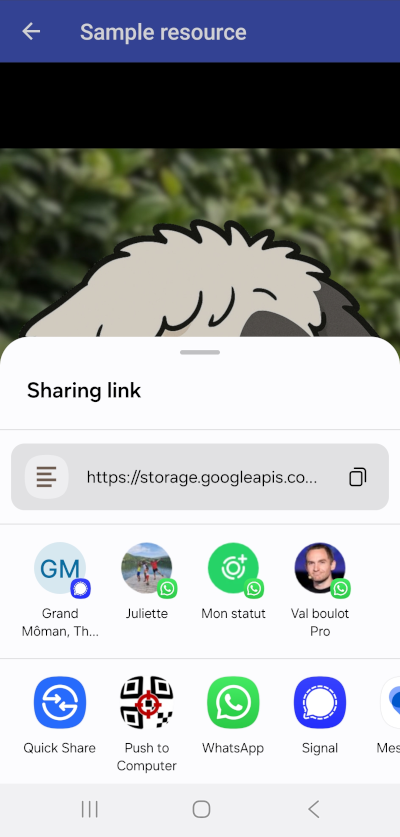
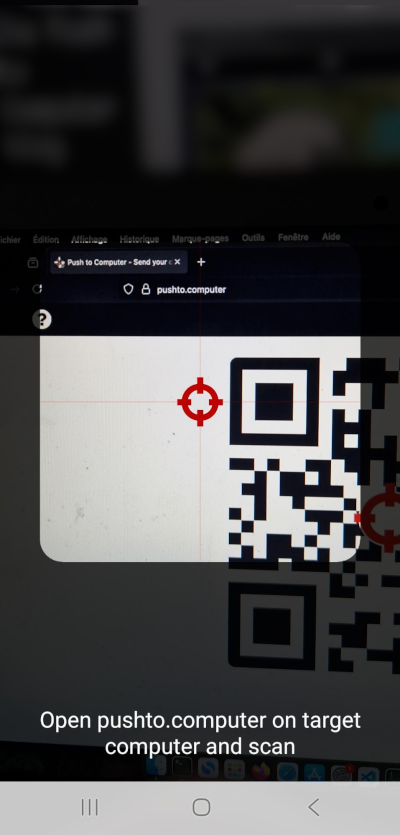
The correct answers to these three questions turn out to be counterintuitive. The QR code is meant to be scanned only by the mobile app Push to Computer - Cool Maze, when sharing a resource. Scanning it transfers data from the mobile to the computer. To send a photo with Push to Computer - Cool Maze, you should not open the app. Instead, go to your photo gallery, select a photo, tap “Share”, select the “Push to Computer - Cool Maze” option, and then scan.
To simplify onboarding and reduce cognitive load, we added a few clues.
- The page pushto.computer is minimalistic. It features only a QR code and a question mark button. The button leads to a clear four-step tutorial and a short video.
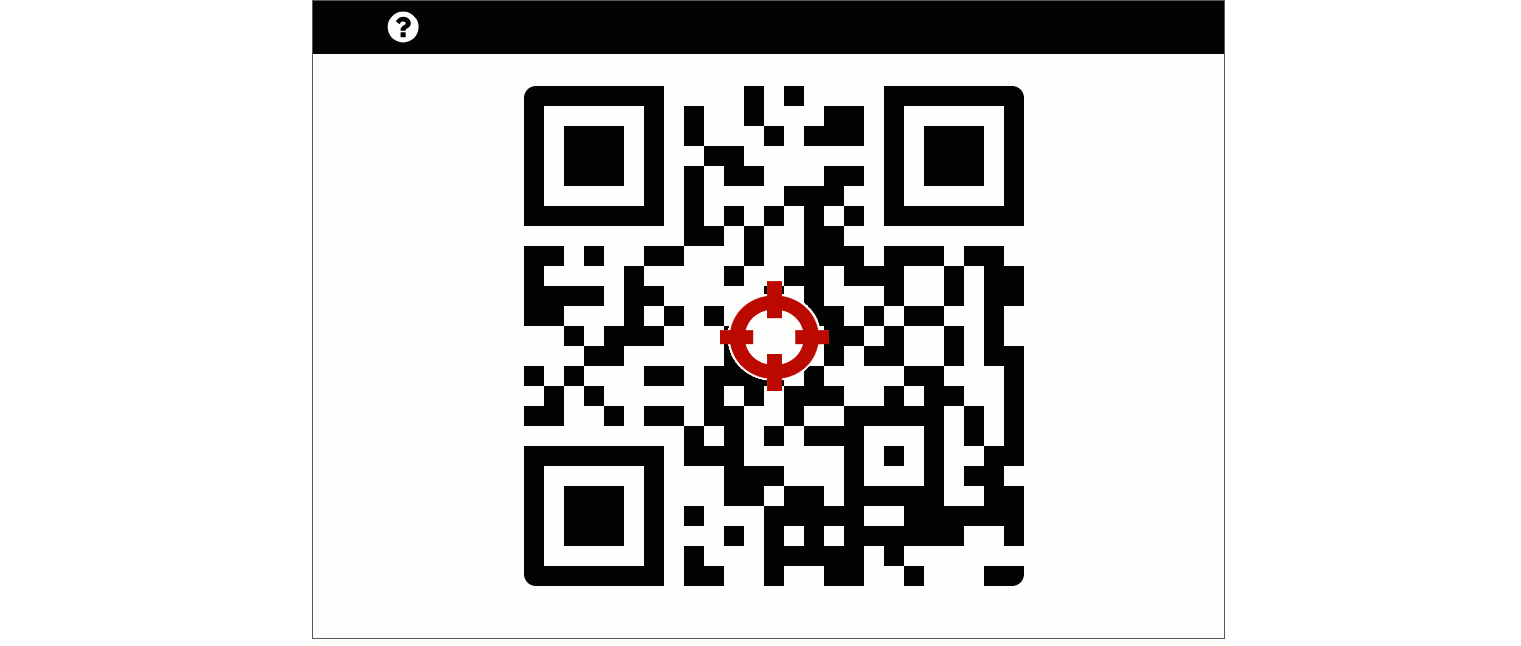
- The text value encoded in the QR code begins with
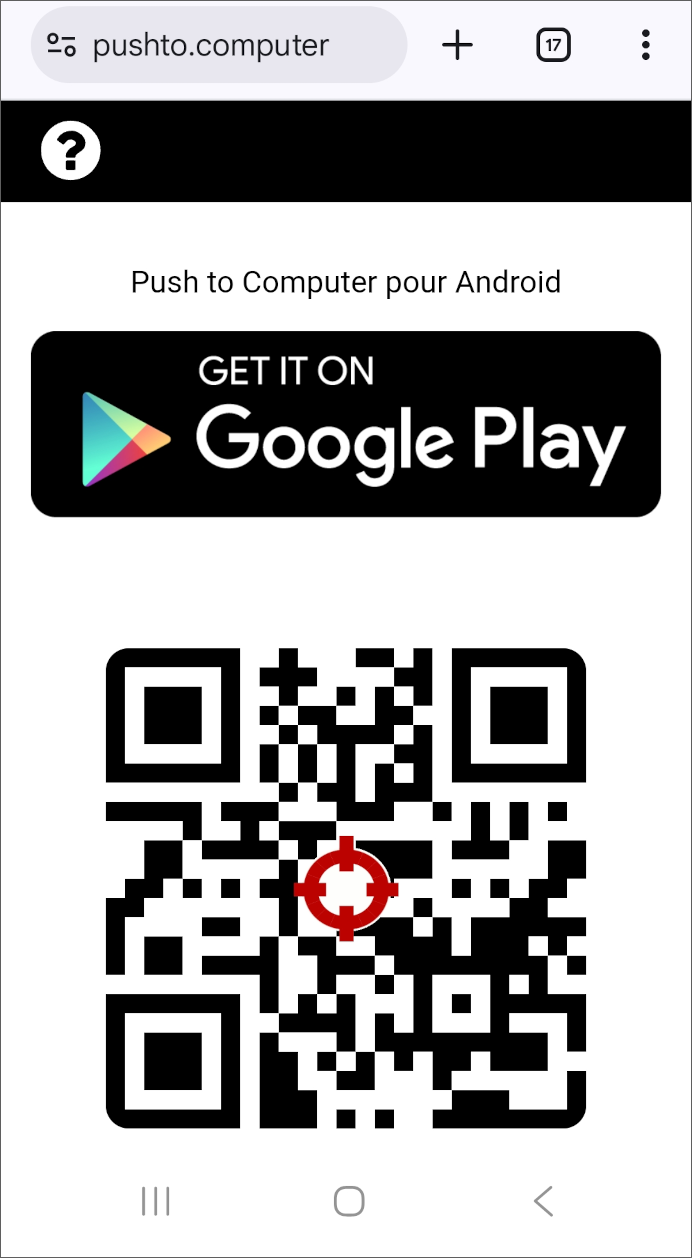
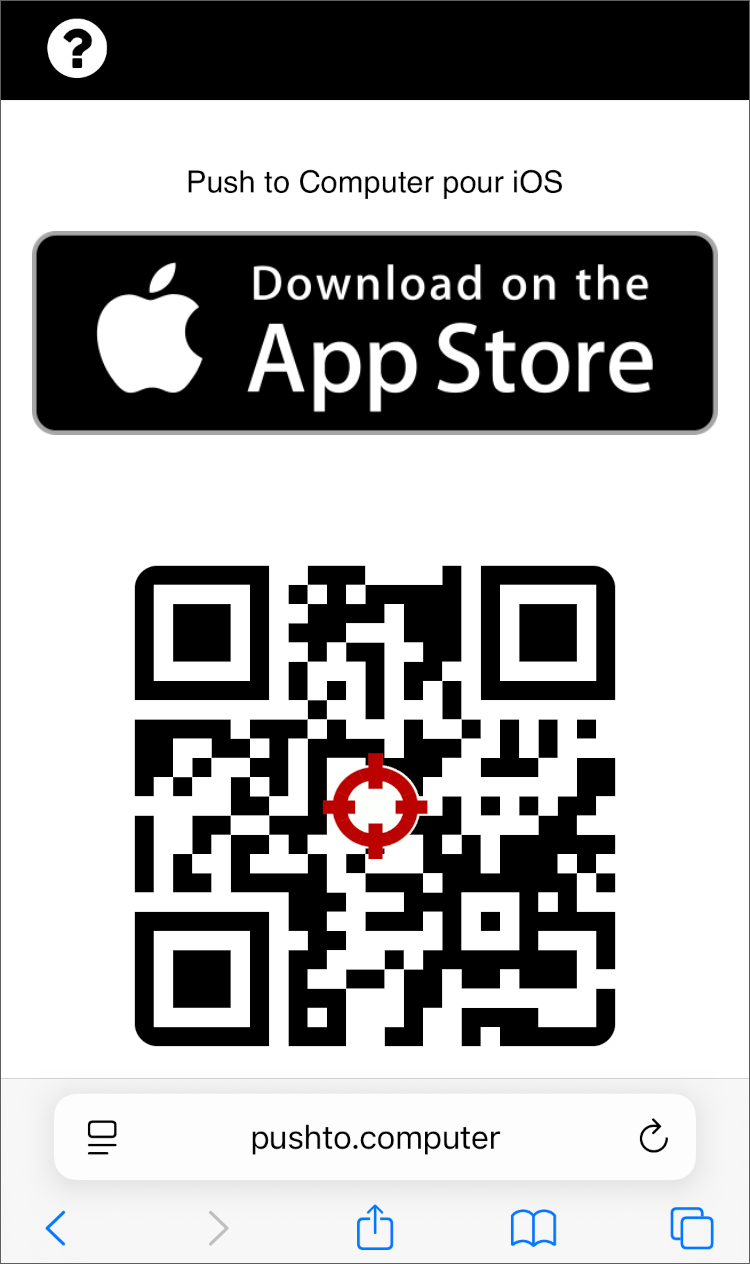
cmaz.io/, followed by a cryptic word. Push to Computer - Cool Maze ignores the first eight characterscmaz.io/when scanning. However, if a newcomer scans with a standard QR code reader, the text value will be recognized as a short domain name that redirects topushto.computer. On a mobile screen, pushto.computer displays a prominent button to install the app via the Google Play Store or the Apple App Store.

 |
 |
|---|---|
| Webpage, on Android browser | Webpage, on iOS browser |
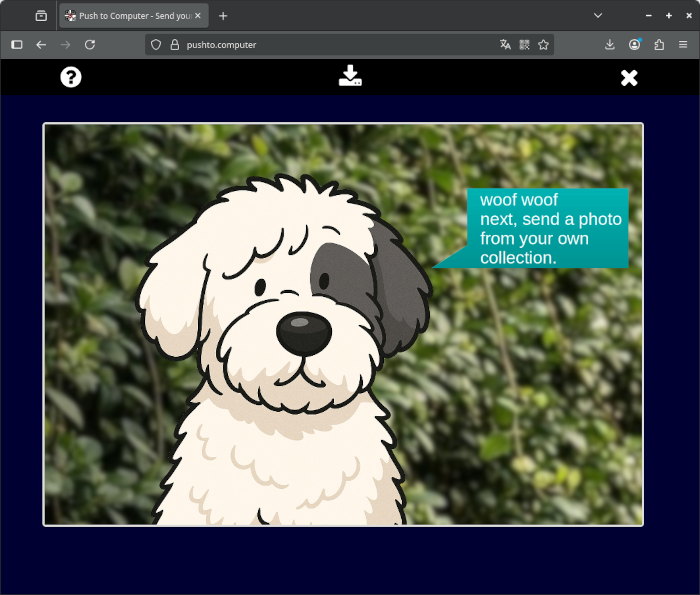
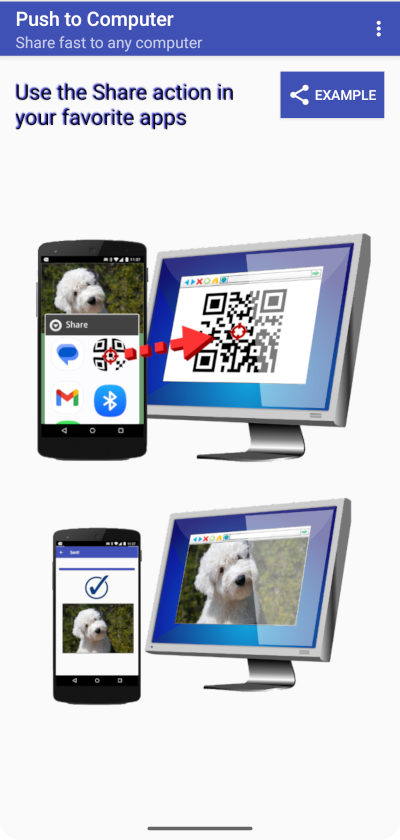
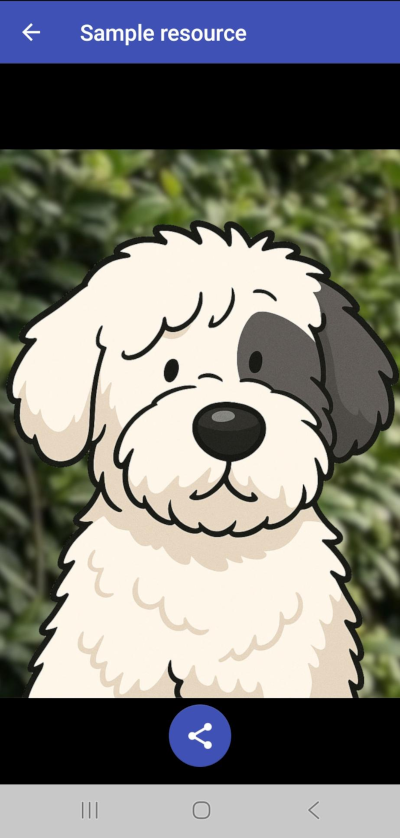
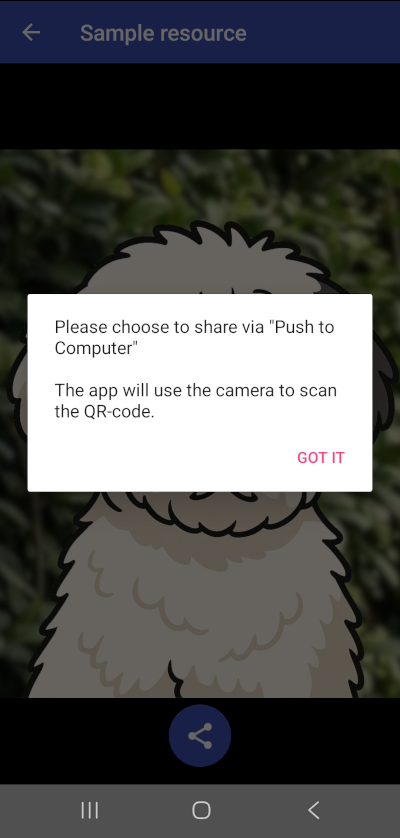
- When you open the app, a prominent button “Try sample” guides you step by step to send a sample photo. Now, opening the app is not entirely useless—it demonstrates how to use the standard “Share with” feature in other apps to initiate a transfer via Push to Computer - Cool Maze.
 |
 |
 |
 |
 |
 |
|---|